الأربعاء، 23 يونيو 2010

Nvidia 256.35 Driver on Ubuntu 10.04 Lucid Lynx

(If you just want installation instructions, skip down to the section labeled 'How to Install It')

I don't normally devote entire blog posts to something as trivial as a driver update. In fact, I usually don't update my proprietary driver blob until Ubuntu updates its packages and pushes them out through the software update tool, but this particular driver update has brought about a couple of major changes (for me) that I thought warranted stepping out of my comfort zone a bit.

These features are:
1.) From Nvidia's website, "Fixed an interaction problem between Compiz and 'screen-scraping' VNC servers like x11vnc and vino [ed.: the VNC server that Ubuntu uses by default] that caused the screen to stop updating."

This bug has been around since Hardy Heron and has been a thorn in my side. The only workarounds were to use a different VNC server (big hassle), constantly close/reopen the VNC connection to manually refresh (even bigger hassle), or switch to metacity instead of Compiz whenever you want remote access (not a huge hassle, but still inconvenient).

2.) The driver now supports overscan compensation (via a slide-control in the nvidia-settings application) for displays that have overscan issues, though this isn't mentioned in the changelog specifically.

This feature has been in the Windows driver control (and the Linux Catalyst driver for ATI users) for a very long time, but it is new for the Linux Nvidia driver and solves another long-standing issue for me. Now, I no longer need to cover the screen edges with transparent GNOME panels to keep new windows from drawing offscreen or worry about toolbars getting chopped off of fullscreen applications. W00t! (Edit: overscan compensation has been in the driver since Karmic, but it never showed up for my specific card until this latest driver).

The new driver also includes a host of new VDPAU improvements, which always a good thing.

How to Install It

Update (7/27/10): If you don't feel like doing all of the steps I have laid out, there's a handy PPA provided by the same cats who package the standard Ubuntu graphics drivers that has a package for the 256.35 driver. You can find it here. Whether you use the PPA or my steps, the Bonus sections below are still applicable and handy.

I have an Nvidia 8600 GT graphics card and, when I first tried to install the driver, I followed the procedure that has always worked in the past of simply downloading the installer, dropping down to console, and running the installer. However, when I tried that, the installer failed with the error "THE DISTRIBUTION-PROVIDED PRE-INSTALL SCRIPT FAILED." Others have apparently also gotten another error, which I will include here for search engine purposes: "Error: Unable to load the kernel module 'nvidia.ko'. This happens most frequently when this kernel was built against the wrong or improperly configured kernel sources, with a version of gcc that differs from the one used to build the target kernel, or if a driver such as rivafb/nvidiafb is present and prevents the NVIDIA kernel module from obtaining ownership of the NVIDIA graphics device(s), or NVIDIA GPU installed in this system is not supported by this NVIDIA Linux graphics driver release."

In either event, these steps should clear things up:

1.) First, we'll gather some resources: download the driver from Nvidia's website and put it somewhere, such as your Home directory. Then, open a terminal and type:
sudo aptitude install linux-headers-`uname -r` build-essential nvidia-settings
2.) Now, we need to get rid of some modules that conflict with our soon-to-be-installed proprietary driver. So, in a terminal, type:
sudo gedit /etc/modprobe.d/blacklist.conf
Scroll down to the bottom and copypasta these lines:
# Allows proprietary Nvidia driver to install
blacklist vga16fb
blacklist nouveau
blacklist rivafb
blacklist nvidiafb
blacklist rivatv
Save and exit.

3.) Next, we need to clear out any previously installed Nvidia drivers, so (still in a terminal) type:
sudo apt-get remove --purge nvidia-*
4.) Reboot and, when the error window pops up saying Ubuntu can't load drivers blah, blah, blah, choose to 'Exit to console,' and it should dump you down to a command prompt. Login and navigate to the directory where you put your Nvidia driver installer from Step 1 (if you put it in your Home directory, you should already be there upon login).

5.) Start the Nvidia driver installer by typing (hint: you can use the TAB key to autocomplete instead of using the * wildcard character):
sudo sh NVIDIA-*
When it asks if you want it to automatically configure things, select 'yes' and it will auto-generate an xorg.conf file with the appropriate fields.

Reboot again and everything should be hunky dory (if not, and your installation still poops out, scroll down to the bottom of the post for some more things you can try).

Bonus Points

Unfortunately, if you install the driver this way, each time a new kernel update comes down the pipe, your Nvidia driver will stop working and have to be reinstalled, which can be a big bummer. However, you can set up a script that will run anytime the driver needs to be reinstalled:

1.) First, we'll move our Nvidia driver installer to a safe location. In a terminal, navigate to wherever it is and type (again, use TAB to autocomplete instead of the wildcard):
sudo mv NVIDIA-* /usr/src
2.) Next, we want to make a symlink (kinda like a more powerful shortcut) to the installer so our script won't need to be rewritten any time a new Nvidia driver comes out. In a terminal, type:
sudo ln -s /usr/src/NVIDIA-* /usr/src/nvidia-driver
Now, since our script will reference the 'nvidia-driver' symlink we can just overwrite the old driver and make a new symlink using the same name if there's a driver update.

3.) Now for the script itself. Open a text editor and, in a new file, copypasta this:
#!/bin/bash
#

# Set this to the exact path of the nvidia driver you plan to use
# It is recommended to use a symlink here so that this script doesn't
# have to be modified when you change driver versions.
DRIVER=/usr/src/nvidia-driver


# Build new driver if it doesn't exist
if [ -e /lib/modules/$1/kernel/drivers/video/nvidia.ko ] ; then
echo "NVIDIA driver already exists for this kernel." >&2
else
echo "Building NVIDIA driver for kernel $1" >&2
sh $DRIVER -K -k $1 -s -n 2>1 > /dev/null

if [ -e /lib/modules/$1/kernel/drivers/video/nvidia.ko ] ; then
echo " SUCCESS: Driver installed for kernel $1" >&2
else
echo " FAILURE: See /var/log/nvidia-installer.log" >&2
fi
fi

exit 0

Save the file with the name update-nvidia and exit the text editor.

4.) Now, we want to make our script executable, so, in a terminal, navigate to wherever you made your script and type:
chmod a+x update-nvidia
5.) Finally, we need to install it. Still in your terminal from the last command, type:
sudo mkdir -p /etc/kernel/postinst.d ; sudo install update-nvidia /etc/kernel/postinst.d
Now, you should be all set. Whenever you install a new kernel, this script should kick in and install the Nvidia driver for you.

Even More Bonus Points

Now that we've got our driver installed and ready to update itself, we should consider our power consumption! Usually, the Nvidia driver will default to a power profile that always leaves your card running full-tilt, which sucks battery life and raises your utility bill. Thankfully, there's something we can do about it.

Open up a terminal and type:
sudo gedit /etc/X11/xorg.conf
This will get us into the auto-generated configuration file created by the driver installer.

Scroll down to the Nvidia driver section (you can tell it's the right section because it will be labeled 'Device,' the 'Vendor' field will say 'Nvidia,' and the 'Driver' field will say 'nvidia') and add these three lines:
Option "RegistryDwords" "PowerMizerEnable=0x1; PerfLevelSrc=0x3333"
Option "Coolbits" "1"
Option "OnDemandVBlankInterrupts" "True"
Save the file and exit.

In the first line, the PowerMizerEnable switch tells the driver that we're interested in using the dynamic clocking features (this switch may not be entirely necessary, as PowerMizer is supposed to be enabled by default, but it can't hurt anything and may be required for some cards/cases), while the PerfLevelSrc field tells it which performance level we want to use. The 0x3333 setting means we want dynamic, on-demand clocking for both battery and AC power.

The second option we added enables the 'Coolbits' feature, which lets us manually control the clock and memory speeds on our card via the nvidia-settings application.

The third option enables a checkbox in the nvidia-settings application to allow or disallow vBlank interrupts. Allowing them (checking the box) reduces the number of wakeups from idle, and thus reduces power consumption somewhat.

Now, in my case (8600 GT), there is only one performance level and dynamic clocking does nothing (you can find out your performance levels by typing in a terminal: nvidia-settings -q GPUPerfModes -t). This really stinks, since I do all of my gaming in Windows and all I really need my video card for in Ubuntu is compositing and fancy desktop effects. With this in mind, I used the Coolbits option via the nvidia-settings application to drastically underclock my card. It now runs at approximately 150 mhz on the core clock and 180 mhz on the memory, which generates far less heat and uses way less power than before. Compiz still looks great and has no performance issues, even while playing HD video, rotating the desktop cube with 3D windows, etc.

If Installer Still Fails
(I didn't have these problems, so I didn't try these instructions myself. They are only here in case you need them)

So, if the above instructions didn't work, we still have some things we can try:

1.) Drop back down to the command line (by pressing Alt+F1), login and type:
sudo gdm-stop
and then
sudo apt-get remove --purge xserver-xorg-video-nouveau
2.) Now, we need to fiddle with some blacklisted framebuffer stuff, so type:
sudo nano /etc/modprobe.d/blacklist-framebuffer.conf
Once in, we need to comment out (put a # in front of) blacklist vesafb and add a new line that says:
blacklist vgafb16
Save and exit (hit ctrl+x).

3.) Now, type:
sudo nano /etc/initramfs-tools/modules
Scroll down to the bottom and add these two lines:
fbcon
vesafb
Save and exit, then update the initramfs by typing:
sudo update-initramfs -u
4.) Now, we need to tell grub about our framebuffer, so type:
sudo nano /etc/default/grub
Once in, search (ctrl+w) for GRUB_CMDLINE_LINUX= and add either vga=771 or vga=795 (which one you'll add depends on your resolution, so for now, just pick one). Save and exit, then update grub by typing:
sudo update-grub
If things are messed up, you can redo the above step using the other vga value to hopefully correct things.

Now, once you reboot, you should be able to pick back up from Step 4 in the original instructions and install the Nvidia driver normally without any further errors.

الاثنين، 24 مايو 2010

Comparison of WebM/VP8 and x264 High Profile

So far, all of the comparisons I have found between WebM--Google's newly minted standard for video/audio encoding that will hopefully be patent-free--and h.264 have suffered from several problems:

1. Objective measurements of VP8 have focused on PSNR, which is a deeply flawed way to measure video quality and to which VP8 was specifically tuned to conform (more on this later in the post).

2. VP8 has has only been compared with inferior commercial h.264 encoders and not with x264, which is free, open-source and the best h.264 encoder in the world.

3. VP8 has only been compared with baseline h.264 and not to high profile, which has substantially better performance and quality. There is a reason for this, which I do not agree with and will cover more later in the post.

For these reasons, I have conducted my own comparisons of WebM (using ffmpeg with Google's own patches, set to preset 360p) vs. x264 baseline and high profile, with settings tweaked to achieve the highest quality. I used videos which exemplified both clean and grainy clips of both animation and live action and which are freely available from Archive.org (downloaded in mpeg2 format). For x264, resolution was reduced to the closest anamorphic value to 360p possible (368p), and I used single-pass 'target size' to closely match the size of the VP8-encoded videos. Since the WebM specification includes both VP8 video and Ogg audio, the x264 encodes also included audio encoded to the same bitrate (64 kbps using the 360p preset). Both codecs achieved adequate and comparable encoding speeds, which were faster-than-realtime (except on extremely grainy content, which slowed the high profile encoding down considerably), so I won't include those numbers here. If you disagree with these methods, feel free to conduct your own tests. Links to download the source videos are in the headings.


This was actually the worst test for VP8, with visible banding on the color gradients and a disappointing loss of detail on the textures as compared with both baseline and high profile. Interestingly, baseline did a better job of avoiding jaggies on the bunny's ear than even high profile, and high profile seemed to introduce some artifacting in places, such as the butterfly... It doesn't really surprise me that x264 did so well in this test compared with VP8, since it has recently gotten some amazing improvements for animation.


High profile really earned its keep with this grainy source material by maintaining detail and avoiding introducing artifacts. Baseline kept more grain intact than VP8, but VP8 ended up with a sharper gremlin. Between VP8 and baseline, I call this one a tie.


Again, high profile really stands out in this sample with regard to the bright light. In contrast, both baseline and VP8 show some banding and blockiness, but are otherwise pretty similar. However, baseline seems to have introduced some wonkiness to the door by the upper-left corner of the '58' that's a bit troubling. Overall, both baseline and VP8 performed admirably in this test and were only slightly worse than high profile.


All three results were surprisingly similar in this test, with high profile managing to keep a bit more detail on the handwritten notes (you can barely see the notes are there at all on the VP8 and baseline encodes). I was impressed with how well VP8 does with the large text on the sign, with good, clean lines and crisp edges, though the pic itself is a little blurry overall.


Once again, high profile demonstrates its superior handling of fine details in this sample, both with regard to the film grain and the multitude of small, moving waves. Both baseline and VP8 provide a similar loss of detail relative to high profile, but VP8 seems to have introduced some odd color distortions (a couple of faint, greenish blotches) that push it below baseline insofar as quality is concerned. However, the Penn Museum watermark looks absolutely exquisite on the VP8 encoding, even surpassing high profile. The whites are whiter, the edges sharper (though there are some visible over-sharpening artifacts around the outside).


High profile came out on top in this high motion scene, but not by as large of a margin as I had anticipated. Both VP8 and baseline only produced a small amount of banding on the gradients, though VP8 seems to have maintained slightly more detail in the motion-blurred parts as compared with baseline. As before, the Penn Museum watermark looks way better in the VP8 encode than in either x264 encode.

Conclusions

Overall, WebM isn't bad but it isn't great either when compared with x264. The popular sentiment that its visual quality is better than baseline h.264 does not seem to be true when compared with x264, though the difference usually isn't terribly large (and it manages to win a few, too). High profile h.264 obviously performs significantly better than either baseline profile or WebM in certain applications (film grain and large patches of water come to mind), while differences in other applications are scarcely discernible. Additionally, one area where VP8 beat the pants off of even high profile x264 was onscreen text, so good work on that one fellas.

Other Thoughts (tl;dr)

Leading up to this comparison, I did quite a bit of reading from other sources and I saw several arguments repeated over and over, so I want to take some time to address them:

Something that keeps getting thrown around in defense of VP8 is that it's a new codec. Unfortunately, it's not. VP8 has been in development and use by On2 (the company that developed it and was later purchased by Google) for years and, while there is apparently still much room for optimization (i.e., to make it faster and less resource-intensive), it is far from "new."

Additionally, all previous comparisons have purposely confined h.264 to baseline profile. This is because "all hardware" only supports baseline profile, so to go any higher would require new hardware and--the line of reasoning goes--if you're making new hardware decoders anyway, it would be just as easy to support VP8 as to support the high profile. This is a specious argument for two reasons: 1.) plenty of hardware already supports high profile h.264 (e.g., Western Digital's TV Live device, as well as many BluRay Disc players) and 2.) if you're going to revamp hardware, why would you go through all that trouble for the "same" comparatively shitty quality (i.e., baseline vs. VP8)? Why not go for the best quality available (i.e., high profile h.264)? The reason, of course, is freedom from licensing fees, but that's a different argument.

I've heard many people say that VP8 is *objectively better* than h.264, based on PSNR measurements. It's true that PSNR is an objective measure, but it only vaguely matches up with human perception. This fault was made painfully clear once psychovisual optimizations were added to x264: although the video output unquestionably improved, PSNR values plummeted. Why does this matter? VP8 was designed to achieve high PSNR values, which left a side-effect of preferring blurrier videos. An analogy for this is the kids who score high on the SAT because they've been taught according to its format, but they can't write a coherent essay.

I've also seen quite a few comments stating that "Google wouldn't have spent $124 million on crap." I have issues with this statement because 1.) VP8 obviously isn't crap, but that doesn't mean it's the cat's pajamas either and 2.) just because Google is chock-full of smart people doesn't mean they are infallible.

Now, the patent issue is certainly something to be concerned about, and Dark Shikari addressed his suspicions during his assessment of VP8. VP8 is very similar to h.264 in a lot of ways, according to his investigation, which could be worrisome. However, his assessment is also encouraging in some ways in that the differences between VP8 and h.264 imply that On2 was cognizant of the various patent pitfalls and was actively avoiding them. For instance, Dark Shikari noted that VP8 is missing B-frames, which is an awful shortcoming from a compression standpoint, but it's smart from an intellectual property standpoint since B-frames are apparently patented pretty tightly. Unfortunately, the patent question likely won't be settled any time soon, but I'm cautiously optimistic that VP8 will turn out okay.

Finally, as Dark Shikari mentioned in his assessment of VP8, perhaps the most serious issue facing WebM (at least in my opinion) is that the finalized VP8 spec is based on buggy C code. For reference, specifications usually describe algorithms and behaviors, then programmers create code to achieve the desired behavior. Sometimes, people who are creating a spec that is not intended to be widely read/followed (e.g., a private company creating a closed-source codec/spec [nudge, nudge]) will, rather than describing the desired behavior, copy code from their reference encoder/decoder that performs the desired function. The reason this is a problem is that, if this code contains bugs (and some of it does in the case of VP8), all decoders that want to properly follow the spec *must* include these bugs or else not conform to the spec. Dark Shikari rightly compared it to the way Internet Explorer 6's flawed execution of HTML required Web developers to write bad code that conformed to those flaws.

Now, maybe Google will create an updated spec (WebM+ or 2.0 or Electric Boogaloo or whatever) that will fix all of the bugs and stand up to x264 high profile in quality, and maybe VP8 is similar enough to VP3 that some of the striking improvements from the Theora project can be applied to VP8. Until then, WebM will be good enough for the Web, I think, and hopefully will provide a modern, free-as-in-speech codec that everyone can get behind. I'll still be using x264 for my own encoding, but it's nice to see improvements in truly free video codecs.

Have an opinion on the subject? Leave me a comment and let me hear about it.

السبت، 3 أبريل 2010

Dared VP-20 Valve Amplifier Review

Before I get to the review, I'd like to give a bit of background to clarify my level of experience and explain my situation. If you don't want to read it, you can skip straight to the actual review, labeled in red down below. Also, gratuitous tube pr0n is down at the bottom of the post. ;-)

My piece of crap solid-state, Sony 5.1 receiver has finally died after nine years of service and, rather than replace it with an equally crappy updated model, I decided to take the plunge and drop a few hundred more bucks on my first tube amplifier. I have read quite a bit on audiophile forums and, while I have never really bought into their pseudoscientific bullshit, I was intrigued by their insistence that tube amps (also known as valve amps) are in a whole different category from their transistor-based cousins.

I am no stranger to a hot soldering iron, so I looked at a number of DIY kits, including a remake of the venerable Dynaco ST-70, which ranged in price from approximately $250 to $700. While the DIY route would have certainly been a great learning experience, one has to weigh the benefits (education, fun, cost-savings) with the potential risks (added costs due to the inevitable mistakes, frustration, potential failure). In the end, I decided it was more likely to actually cost more to go DIY, so I started exploring alternatives.

Overall, new valve amps from well-respected brands start at approximately $1,500, which is much greater than my budget of roughly $600. Within this price range, I basically had two options: buy a used entry-level amp from a well-known, reputable company or take a risk on one of the ultra-low-cost Chinese-built amplifiers that can be found online (e.g., Music Angel and Yaqin).

Side note: For anyone who is taking their first steps into high-end audio, the best places to look online appear to be eBay and AudiogoN. Out of the two, I think AudiogoN is a better place to find good deals on solid equipment. The crowd there is highly knowledgeable and I think you are less likely to get stuck with non-functional equipment than if you purchase from eBay.

I kept my eye on both eBay and AudiogoN looking for anything that fit my criteria. On eBay, I was drawn to the Yaqin MC-100B, which utilizes 6sn7 preamp tubes and the very popular KT-88 output tubes. This amp was available from two sellers, one from Hong Kong for approximately $700 after shipping and one from Canada for approximately $800 after shipping. The one from Canada also does quality assurance testing, which is apparently the main concern with the Chinese amps, so anyone looking into this amplifier should strongly consider spending the extra hundred bucks just for peace of mind and ease of support should the need for repairs arise.

Just when I was ready to take the plunge on the MC-100B, I came across an interesting alternative: a seller on AudiogoN was offering a demo unit of the Dared VP-20 for $590 (the official retail price is $1,300, but I suspect this price is inflated to make the actual selling prices seem extra-low; I have seen brand new units for only ~$100 more). This amplifier, which uses both the 12AX7 and 12AU7 preamp tubes and 6L6G output tubes, is a strange beast in that it sits somewhere between the traditional integrated and monoblock options. The two channels are separated from one another but they are tethered to and share a single power supply, which is intended to reduce interference while saving on the cost of additional power supply components.

I only found one review of this amp online and it seemed a little overly effusive for its supposed objectivity, so I didn't place too much trust in it. This left me with essentially no prior guidance on the amp's quality, regarding either sound or craftsmanship. I was encouraged, though, by Dared's use of audiophile-quality capacitors, gold-plated jacks and gold-printed circuit boards. Furthermore, the amp is built with an auto-biasing circuit, which apparently makes tube rolling as easy as plugging in a toaster (i.e., no mucking around with multimeters and tiny screwdrivers).

Now for the review

I decided to go for it and the seller, who is apparently(?) Dared's North American distributor based out of Illinois, was very helpful and patient when dealing with my many questions. He accepted my offer and three days later, the amp was delivered to my door via FedEx. It was double-boxed and then packed into a fitted foam block:


The tubes were not separately packed, which was a bit of a disappointment, but overall, the packing was very secure and it was clear that nothing had moved around during transit.

In addition to the amp, the box came with several of the usual goodies, including a pair of white gloves, a microfiber cleaning cloth and a cleaning brush, along with a run-of-the-mill power cord, two meaty cables to connect the quasi-monoblocks to the shared power supply and--inexplicably--a USB-A to USB-A cable (I'm still not sure why this was included, but I suspect my unit was mistaken for another one from the same seller that comes with a simple USB DAC):


The first thing I noticed upon pulling the actual amp units out of the foam was its mass and solidity. The pieces felt very sturdy in my hands, and I have absolutely zero complaints about build quality. Where I had expected plastic and/or cheap metal, I found polished stainless steel and gorgeous, natural wood. There were quite a few fingerprints on the units, but I didn't mind since it was a former demo unit and they were easily polished out with the included cloth.


On the back of the blocks, you can see the gold-plated RCA and speaker jacks:

This amplifier will push either 8 ohm or 16 ohm speakers, depending on which speaker jacks you plug into. Unfortunately, the speaker jacks do not appear to be labeled, unlike most every other opening on the amps, so I just *guessed* that the signal jacks to the left of the ground jack was the 8 ohm on both sides... Everything appears okay so far, so it looks like I guessed correctly.

Another puzzling oversight is that the back of the power supply unit has both output power jacks labeled with the identical "To Right Amplifier":


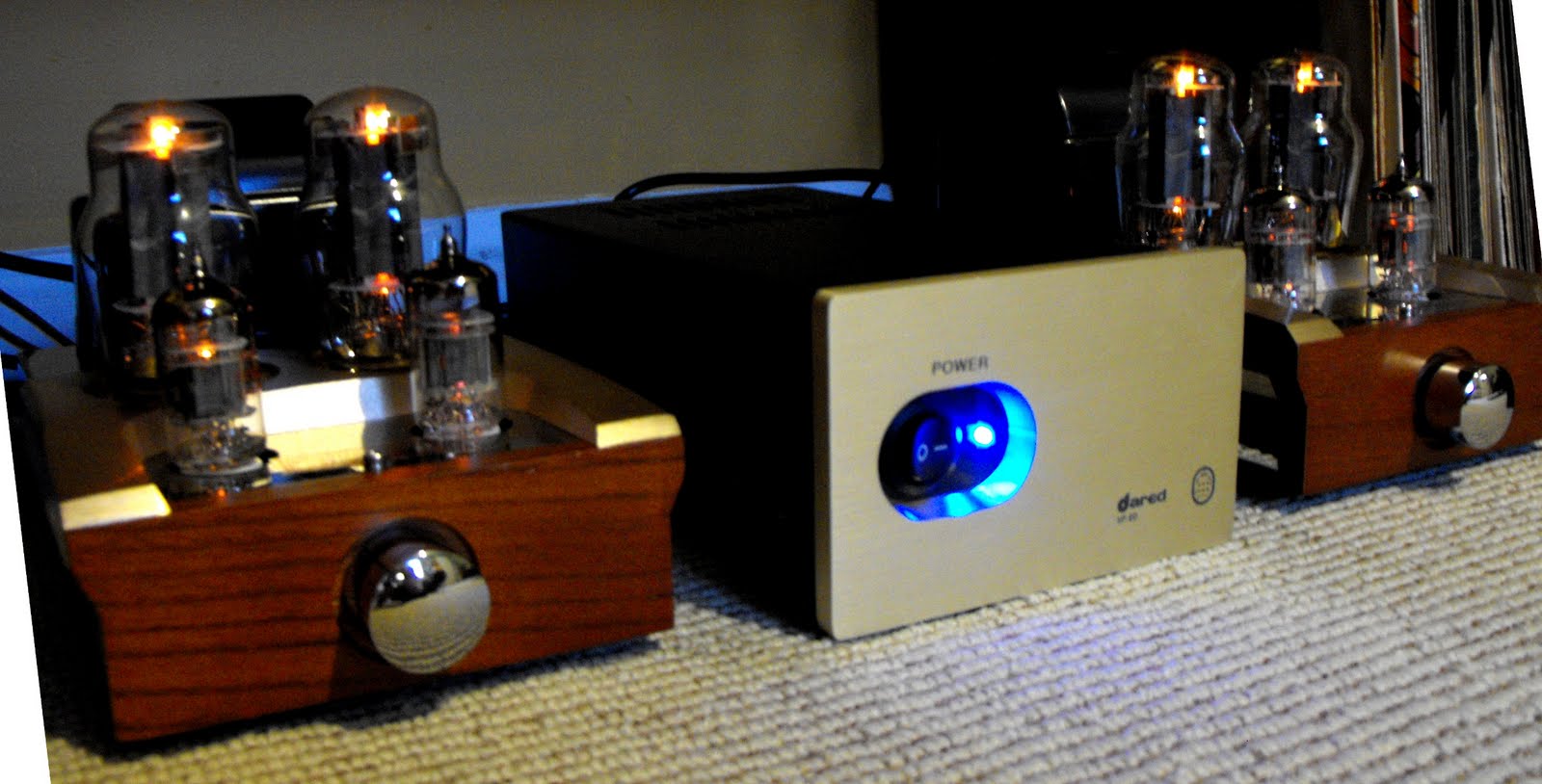
Once I got everything plugged up and connected to my speakers (Phase Technology Teatro 7.5s; now discontinued, but you can find out more about them here), I flipped the switch on the front of the power supply and watched the tubes spring to life:


Before attaching any signal to the amp, I turned the integrated volume pots to approximately 40% and listened for any noise, hum, etc. I heard absolutely nothing, even with my ear right up against the tweeters. That may change at higher volumes, but I didn't want to overload anything before I even got started, so I didn't turn it up any higher.

I connected my CD player, an unremarkable 301-disc changer from Pioneer, and selected a recording of Dvorak's "New World" Symphony. I was immediately blown away by the clarity of this amp. I don't have any prior experience with tube-based hi-fi, so I can't say how the amp compares to other valve amps, but I can honestly say it is far better than any solid state amp I have encountered. Compared with my old receiver, listening to this amp felt like I had cleaned my ears out! I could suddenly hear the most amazing minutae, including musicians shuffling in their seats and flipping pages in their sheet music.

Furthermore, the amp puts out just 18 watts per channel, which is a far cry from the 100 watts x 5 channels that my older solid state receiver put out. Before my purchase, I was apprehensive that the amp simply would not get loud enough for comfortable listening anywhere except for right in front of the speakers, but it does just fine. My speakers have a sensitivity of 90 db, which is better than most low-quality bookshelf speakers but worse than many higher-end speakers (and much worse than the often-gigantic "high sensitivity" speakers), and I found that turning the volume to approximately 50% on my preamp (a solid state Gemini PA-7000 Professional) and approximately 50% on each amp block is loud enough to hear throughout my house and too loud to comfortably listen to directly in front of the speakers.

Next, I put on the first track from Pink Floyd's Atom Heart Mother, an epic 20-minute song that includes the usual guitar, bass, keyboards and drums, as well as a brass section, a full chorus and horses(!). What struck me most while listening to this track was that I lost the sense of sounds reproduced by a pair speakers. Instead, with my eyes closed, I felt like I could point to the individual band members in the room with me. Rick Wright's haunting keyboards drifted in from the left behind the bookshelf, while Dave Gilmour played from somewhere in the vicinity of my kitchen sink. I believe in audiophile parlance, this is known as the 'soundstage,' but don't hold me to that. When the brass kicked in, I thought I heard some distortion, but it was actually just the way brass instruments sound. I had become so used to hearing that part of the song through my muddy solid state system that it took me a minute to remember how the instruments actually sound in person!

For frequency response, the highs are extremely crisp and the lows are rich without the booming I had become accustomed to with my older 5.1, subwoofer-driven system. Since my initial listening test, I have attached my powered subwoofer to the second output of my preamp to add a little more bass to it, but this is just a personal preference and many "experts" would probably say it's too much.

After the Pink Floyd, I listened to some Yes and was impressed by how distinct the layering of their instrumentation was. It's now possible for me to mentally separate each layer of the vocals instead of just hearing the harmonized mishmash.

After that, I put on Chris Isaak's Baja Sessions, which was a great match for this amp. I never expected to hear the sound of fingers on guitar strings and drumsticks bouncing off drum heads, but it's all there, lending a sense of realism that defies description. Now, to be honest, how much of that is unique to this amp and how much is just an effect of moving from solid state to tubes, I can't say. What I can say, though, is that I am now rediscovering my music in a way I never thought possible. I feel like when I got my first pair of prescription glasses; like I am finally privy to an entire world of beauty and crisp resolution that was heretofore hidden just out of reach.

Other Thoughts

A lot of folks online have mentioned that the Chinese tubes that come in these amps are terrible, but they sounded fine to me. Luckily, all of the tubes are available for relatively low prices online and I plan to try out quite a few. I'll post my results here whenever I do.

If anyone has any questions about anything in this post, including specific questions about the amp and/or choosing a first tube amplifier, feel free to leave a comment.

Now, on to the tube pr0n:

الجمعة، 26 فبراير 2010

How to Run New Steam UI Beta in WINE

If you've opted-in for Steam's Beta user interface in Linux via WINE, you've probably noticed some serious issues, such as the main window not drawing properly on your desktop. Luckily, this is actually really easy to fix. All you have to do is go into your WINE configuration and change the Windows version from the default Windows XP to Windows Vista (or Windows 7, either one works):
Restart Steam and it will notify you that it needs to install a Steam component that requires administrator privileges. Click 'ok,' wait a few minutes, then start Steam again. Everything should begin rendering just dandy:
Everything I tried in the Library and Friends sections seems to work, including downloading and installing games, launching games, chatting with friends, etc. Unfortunately, the store, news and community features still don't show up properly :(

Also, in-game chat using the overlay appears broken in that the game hangs when you try to switch and you can't see what you're typing if you try to chat. However, alt+tab still works, so that's something.

As an added bonus, the 'minimize to system tray' feature works swimmingly:


Original post (for posterity):
I just opted-in for Steam's beta version of their fancy new user interface, which includes a number of improvements such as a greater focus on social interaction and switching from the Internet Explorer rendering engine to a WebKit-based renderer. I had assumed that this would grease the gears a bit on using the UI in Linux via WINE, but it has unfortunately done the opposite.

Now, if you try to launch the updated UI, the Desktop Switcher down in the bottom-right corner of the screen shows a big window with a Steam logo on it, but the window isn't drawn on the desktop as far as I can see.

This post is primarily a placeholder for anything I might find/come up with to correct the problem. So far, I haven't tried disabling compositing or anything like that, so that's next on the list. Feel free to leave me a comment if you have any clues to what's going on.